
6E Club Login
Your 6E Club login is a mobile number and a password – nothing more. This page shows the exact steps on the app and in a browser.
It also covers email login, what to do when the app keeps logging you out, and the security settings worth switching on today.
6E CLUB LOGIN SCREEN
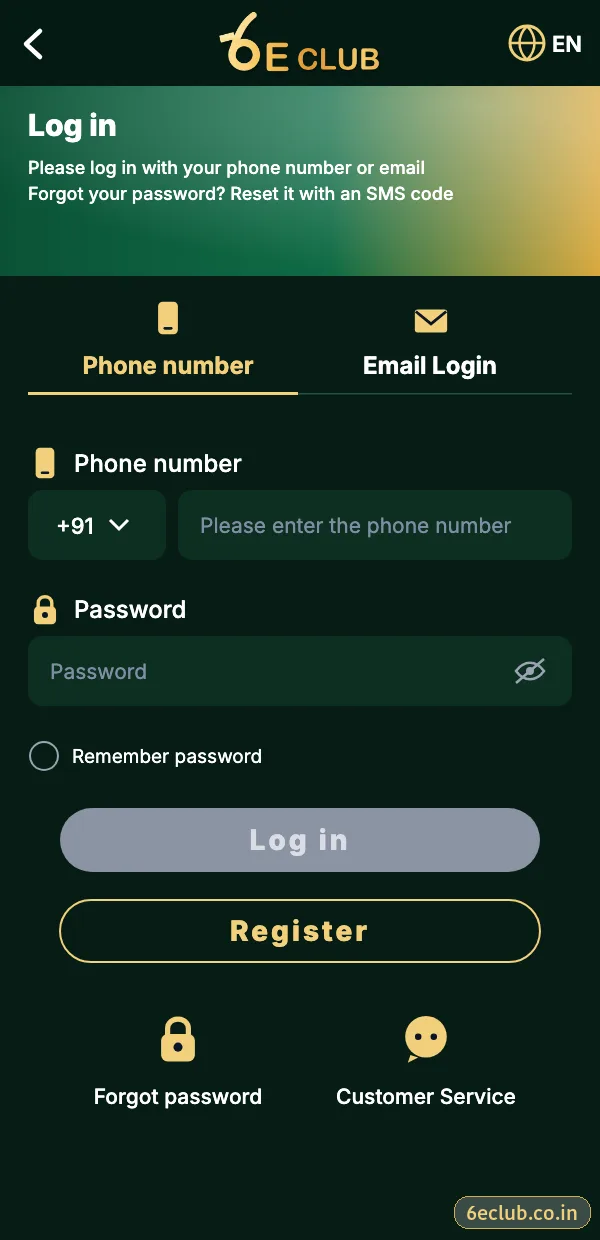
6E Club login screen
Phone and email tabs, password field with eye icon, Forgot password and Customer service links.
On this page
- 6eclub login step by step
- What is my 6E Club login ID?
- Phone login vs email login
- App login vs browser login
- Why does 6E Club keep logging me out?
- Fixes for 6E Club login problems
- Security after you log in
- Logging in on a shared or public device
- Updating saved passwords everywhere
- 6E Club login checklist
- What happens after a successful 6eclub login
- Signing in after a long break
- FAQs
6eclub login step by step
- Open the 6E Club app, or your bookmarked official website.
- Tap Log in – the phone tab is already selected.
- Enter your ten-digit number without 0 or +91.
- Enter your password; tap the eye icon to check what you typed.
- Tap Log in. The lobby loads with your balance and UID.
What is my 6E Club login ID?
Your 6E Club login ID is the mobile number you registered with. If you later bound an email address, the Email tab works too. The UID shown on the Account page is a separate number used by customer care to find your account – you do not log in with it.
Phone login vs email login
| Method | What you enter | Best for |
|---|---|---|
| Phone tab | Registered mobile number + password | Everyday login |
| Email tab | Bound email + same password | When your SIM is not with you |
App login vs browser login
| 6E Club app | Browser | |
|---|---|---|
| Stays signed in | Yes | Only while cookies last |
| Speed | Fastest | Depends on the browser |
| Risk of fake links | Very low | Check the address every time |
| Works on iPhone | As a Safari web app | Yes |
Why does 6E Club keep logging me out?
The usual reasons are a login on another device, cleared browser data, or a password change made elsewhere. If you did not change anything yourself, reset the password at once and check the login history in Settings. Keeping the 6E Club app installed avoids most cookie-related logouts.
Fixes for 6E Club login problems
“Incorrect password”
Turn off autofill and type it by hand, or use forgot password.
“Account does not exist”
You may have registered with a different number; try your other SIMs.
Too many attempts
Wait 10–15 minutes before trying again.
Page will not load
Switch between Wi-Fi and mobile data, or open the app instead of the browser.
OTP on a new phone not arriving
Keep the registered SIM in the phone and check DND.
Security after you log in
- Switch on login alerts.
- Bind a backup email.
- Log out of old or shared devices.
- Use the app or a bookmark – never a link from a chat.
- Never share an OTP with anyone, including people claiming to be support.
Logging in on a shared or public device
- Use a private or incognito window.
- Do not let the browser save the password.
- Log out and close the window when you finish.
- Change your password later if the device was not yours.
Updating saved passwords everywhere
If you use 6E Club on a phone and a laptop, update the saved password on both after any change. Otherwise the old one keeps being tried automatically and the account can lock for a few minutes. It is a ten-second habit that saves a lot of confusion.
6E Club login checklist
- Open 6E Club from the app or a bookmark.
- Phone tab selected, number typed without 0 or +91.
- Password typed by hand if autofill fails.
- Login alert received and recognised.
- Log out when using someone else’s device.
What happens after a successful 6eclub login
The lobby opens on the Home tab with your UID and nickname at the top. Notifications appear as a small badge – check them first, because security alerts and gift-code announcements land there. If anything looks unfamiliar, such as a device you never used, reset your password straight away.
Signing in after a long break
If you have not opened 6E Club for months, the app may ask you to update first, and a new phone may request a one-time SMS code. Make sure the registered SIM is active before you start. If the number has changed in the meantime, 6E Club customer care can help you verify the account.
Start with 6E Club the safe way
Use the official 6E Club app or website – one 6E Club account works on every device.
Frequently asked questions
Do I need an OTP for every 6E Club login?
No – only for registration, resets and sometimes a first login on a new phone.
Why was I logged out?
Usually a login on another device or cleared browser data.
Can I log in with email?
Yes, after binding an email in settings.
Is my UID my login ID?
No – log in with your mobile number.